Time
Specifies how long the stimulus is to remain on the screen in milliseconds OR tells DirectRT to wait for a specified input event (e.g., keypress, mouseclick, joystick event, microphone input, TTL signal).
Values
The Time column can be used to specify 1) a stimulus duration in milliseconds or 2) that a response is required.
Details
Specifying a Stimulus Duration
Enter any integer value to specify the number of milliseconds for which the stimulus will be displayed. For example, to display the stimulus "stim1" for 500 milliseconds before the next stimulus were displayed type 500 into the time column cell immediately following the stim column cell for "stim1":
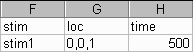
Advanced Hint: You can create a "Compound-Screen" by using a Time value of 0 for the current stimulus and a Clear value of 0 in the Loc column for the subsequent stimulus. Using a Time value of 0 tells DirectRT that you don't want to display the stimulus alone. DirectRT will then take the subsequent stimulus and put it on the SAME screen for display at the same time (i.e., with no delay in between). Just make sure you don't request a clear screen (i.e., a Clear value of 1) for the subsequent stimulus! In fact, you can place as many stimuli on a single screen at one time as you like using this method.
Note about sound files: Sound files are always played to their completion. For sound files, the stimulus presentation time represents the number of milliseconds that DirectRT should wait after starting the sound before presenting the next stimulus. For example, if you wanted to play three sound files, each starting one second after the other, then you would use a time value of "1000" for each. To have them all play simultaneously, you would use a value of "0" for each. Note: When playing multiple sound files "simultaneously", DirectRT will start each sound sequentially with as little delay as possible given your system's processing capabilities.
Specifying that a Response is Required
In addition to specifying the duration of a stimulus, you can use the Time column to indicate that a response is expected before continuing. The kinds of responses you can request are:
KeyPresses, MouseClicks, and Discrete JoyStick Motions
Request a short open ended response
Record a voice response and reaction time via the microphone
Record continuous joystick movement for a specified duration
Wait for TTL signal from an external device (version 2002.3 and later)
Collect multiple response times per trial
Record KeyRelease time in addition to subsequent KeyPress time
Require Correct Response (e.g., IAT)
Response Feedback (display subject's response on screen)
KeyPresses, MouseClicks, and Discrete JoyStick Motions
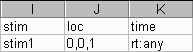
Enter "rt:" followed by any number of valid key, mouse or joystick codes (see below for a list of valid keys and their corresponding code numbers). For example, typing "rt:any" in the time column cell after the stim column cell for a stimulus named "stim1" would instruct DirectRT to wait for participants to press any key after the display of stimulus "Stim1":
As another example, typing "rt:44,55" in the time column cell after the stim column cell for a stimulus named "stim1" would instruct DirectRT to continue only if the subject hit the "Z" key (code 44) or the "/" key (code 53).
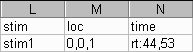
See the codes table below for allowing specific responses. You can list as many codes as you like. However, when assessing response accuracy, the first key code defines the "correct" response. Thus, the "Correct" column of the short data file will record a value of "TRUE" if the first defined key is pressed. If the key pressed by the subject is any of the other keys besides the first one listed then the "Correct" column in the data file will record a value of "false".
In addition to the specific key codes, other allowable keypress events are:
- any = any key
- num = any number key on the regular keyboard
- numpad = any number on the number pad
- alpha = any character of the 26-character alphabet
- funct = any function key
Common Key Codes
Key |
Code |
Key |
Code |
Key |
Code |
Key |
Code |
Key |
Code |
Key |
Code |
|---|---|---|---|---|---|---|---|---|---|---|---|
1 |
1 |
Pad1 |
79 |
F1 |
59 |
A |
30 |
N |
49 |
Enter |
28 |
2 |
2 |
Pad2 |
80 |
F2 |
60 |
B |
48 |
O |
24 |
Space |
57 |
3 |
3 |
Pad3 |
81 |
F3 |
61 |
C |
46 |
P |
25 |
lShift |
42 |
4 |
4 |
Pad4 |
75 |
F4 |
62 |
D |
32 |
Q |
16 |
lCtrl |
29 |
5 |
5 |
Pad5 |
76 |
F5 |
63 |
E |
18 |
R |
19 |
lAlt |
56 |
6 |
6 |
Pad6 |
77 |
F6 |
64 |
F |
33 |
S |
31 |
rShift |
54 |
7 |
7 |
Pad7 |
71 |
F7 |
65 |
G |
34 |
T |
20 |
rCtrl |
157 |
8 |
8 |
Pad8 |
72 |
F8 |
66 |
H |
35 |
U |
22 |
rAlt |
184 |
9 |
9 |
Pad9 |
73 |
F9 |
67 |
I |
23 |
V |
47 |
; |
39 |
0 |
10 |
Pad0 |
82 |
F10 |
68 |
J |
36 |
W |
17 |
' |
40 |
F11 |
87 |
K |
37 |
X |
45 |
, |
51 |
||||
F12 |
88 |
L |
38 |
Y |
21 |
. |
52 |
||||
M |
50 |
Z |
44 |
/ |
53 |
Less Popular But Still Loved
Key |
Code |
Key |
Code |
Key |
Code |
|---|---|---|---|---|---|
- |
12 |
Home |
199 |
PgDn |
209 |
[ |
26 |
Insert |
210 |
PgUp |
201 |
] |
27 |
Left |
203 |
Right |
205 |
` |
41 |
LWin |
219 |
rWin |
220 |
= |
13 |
NumLock |
69 |
ScrollLock |
70 |
Apps |
221 |
PadCom |
91 |
SysRq |
183 |
Backspace |
14 |
PadDec |
83 |
Tab |
15 |
CapsLock |
58 |
PadDivide |
181 |
Up |
200 |
Delete |
211 |
PadEnter |
156 |
||
Down |
208 |
PadMinus |
74 |
||
End |
207 |
PadMult |
55 |
||
Esc |
--- |
Pause |
116 |
Joystick & Mouse Codes
Joystick |
Code |
Mouse |
Code |
|---|---|---|---|
Button 1 |
241 |
Left-Click |
252 |
Button 2 |
242 |
Right-Click |
253 |
Button 3 |
243 |
Mid-Click |
254 |
Up |
244 |
Other-Click |
255 |
Up-Right |
245 |
||
Right |
246 |
||
Down-Right |
247 |
||
Down |
248 |
||
Down-Left |
249 |
||
Left |
250 |
||
Up-Left |
251 |
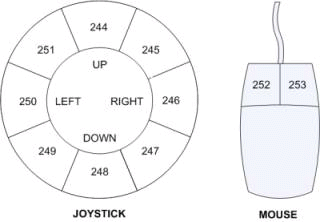
Note about joystick codes: You must first make sure your joystick is set up to work with Windows programs. You can set up your joystick by selecting "Gaming Options" or "Joystick" in the Windows Control Panel. You might need to "add" your joystick if you do not see it currently configured there. When you check this, it's also a good idea to calibrate your joystick using the calibration utility provided by Windows. The movement codes above (i.e., 244-251) are triggered as follows: DirectRT divides the joystick range into 8, 45 degree angles (like cutting a pizza into 8 slices). As soon as the joystick has moved more than half of it's range in any direction, DirectRT determines which of the 8 "slices" the joystick is in and takes that as the response and records the RT at that point. See also: Continuous Joystick Capture.
Note about mouse codes: You may choose to have subjects respond with mouse clicks rather than key presses. This can easily be done with the mouse codes above. Note that you will not see the mouse cursor.
See also
Using Key Codes in the Time Column.
See also:
MinMax settings for options involving automatic continuation, fixed stimulus display intervals with an RT, clearing the stimulus before a response has occurred, allowing no response as an option, etc.
Other Response Methods and Features
In addition to the traditional codes, DirectRT provides a number of other response methods and features. Because a number of these methods involve rather lengthy explanations, we will refer you to an illustrative sample for each one that fully explains the feature and simultaneously provides a concrete demonstration.
Request a short open ended response
Record a voice response and reaction time via the microphone
Record continuous joystick movement for a specified duration
Wait for TTL signal from an external device
Collect multiple response times per trial
Record KeyRelease time in addition to subsequent KeyPress time
Require correct response (e.g., IAT)
Response feedback (display subject's response on screen)