Samples
Some Custom Sample Code
Examples of custom items and various code snippets can be found throughout the forums at our support forums
The following examples of HTML form code are taken from www.w3schools.com/html/html_forms.asp
Text Fields
Text fields are used when you want the user to type letters, numbers, etc. in a form.
<form>

First name: <input type="text" name="firstname"><br>

Last name: <input type="text" name="lastname">

</form>
How it looks in a browser:
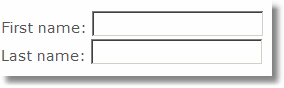
Note that the form itself is not visible. Also note that in most browsers, the width of the text field is 20 characters by default.
Radio Buttons
Radio Buttons are used when you want the user to select one of a limited number of choices.
<form>

<input type="radio" name="sex" value="male"> Male <br>

<input type="radio" name="sex" value="female"> Female

</form>
How it looks in a browser:

Note that only one option can be chosen.
Checkboxes
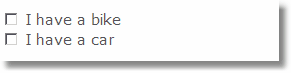
Checkboxes are used when you want the user to select one or more options of a limited number of choices.
<form>

<input type="checkbox" name="bike">I have a bike <br>

<input type="checkbox" name="car">I have a car

</form>
How it looks in a browser:
The Submit Button
When the user clicks on the "Submit" button, the content of the form is sent to another file. The form's action attribute defines the name of the file to send the content to. The file defined in the action attribute usually does something with the received input.
<form method="post">

Username: <input type="text" name="user">

<input type="submit" value="submit">

</form>
How it looks in a browser:

If you type some characters in the text field above, and click the "Submit" button, you will make the text data available to MediaLab for the variable User.