Data FAQ
- Merging Data
- Using SPSS to read your data
- Using Excel or other spreadsheet to read your data
- Getting Data into SAS
- Viewing Data
- Determining presentation order of random items and files
- Determining when events happened in real time
- Location of essay data
- Changing the values written to the data file
- Changing the value used for missing data
- The Clear Data button and how to disable it
- How to create a vertical format data file
- How to save data from a custom item made with HTML
- Using Long variable names
- Inserting variables into question wording and response options
Is there an easy way to merge multiple MediaLab data files?
Each subject's data are appended to the same constant data file for ease of analysis, so you won't have to merge any files that are collected on the same computer. You will however have to merge files collected on different computers. MediaLab offers a utility called FileMerge located in the Utilities folder to do this rather painlessly. You can also start FileMerge by selecting Data > Merge Data Files from the main MediaLab menu. After opening the filemegre application and a separate window on your computer containing the files you wish to merge, just drag the files you want to merge into the FileMerge window and select "Merge Files" from the File menu of the filemerge application. If you like, you can also save the list of files to merge them again later. A quick tutorial on FileMerge is available by clicking on the FileMerge Help menu.
How do I get SPSS to read the .txt data?
The easiest way to access your data in SPSS is to open the .sav data file located in the byVariablename data subfolder. However, if for any reason you want to import the raw text data files using SPSS syntax, here's how. If your Experiment File is named "exper1.exp", then the text file "exper1.txt" will have all your data in format that SPSS can read. The text file "exper1.sps" will be the input syntax file for SPSS to read. Just open "exper1.sps" in SPSS--make sure that you don't try to open it in the Data Editor window--and it will read the exper1.txt" file. It will automatically assign variable formats and variable names. You can start analyzing immediately. At the top of the .sps input file are a number of things to check for to make sure you don't get any errors (e.g., variable names that are too long). Once the data has been read into SPSS, you can save it as a .sav file, analyze it immediately or export it into almost any other database format.
How do I get Excel to read the data?
If your Experiment File was named "exper1.exp" then also written to the Data folder will be a file called "exper1.csv". This file will have all your data in a format that Excel can read. Just open this file with Excel, and it will automatically read in the data, variable formats, and variable names. You can then save the file as an .xls file readable by almost any stats package. Be careful though, Excel 2003 and earlier versions can only read 255 variables. If you have more variables than that (including response times), then you may want to have SPSS read in your file.
How do I get SAS and other data analysis packages to read the data?
Most stats package will have the capability to read the .csv file (this is the comma-delimited file) in the data folder of your experiment directory and transform it into format compatible with itself. If not, have Excel read the .csv file and then have your stats package read the Excel file. Some will require you to save the Excel file in an earlier version (e.g., as an Excel 2003 worksheet).
How do I determine the order in which random items were presented?
There is routine that keeps track of the actual presentation order of everything (e.g., of files and questionnaire items that are presented randomly). After completely running an experiment file in Medialab, you can find a log file called question_order.csv in the ByQuestionnaire data folder. The first row is the order of files (i.e., from the Experiment File) and the remaining rows are the question orders for each Questionnaire File in the order they actually occurred, with a time stamp written to verify the time at which each Questionnaire File was started.
How can I tell exactly when an item was presented—i.e., in real time?
By entering @ in the Parameter(s) field for any item in a questionnaire, you can have MediaLab write a timestamp at the onset of the item. When you do this, a timestamp will be appended to a file called timestamps.csv in the data folder. It will include the subject id, the variable name, the time at which the item *started* (e.g., 12:23:22), the milliseconds elapsed from the beginning of the experiment and the milliseconds passed since the last timestamp.
Where is my essay data?
Because large quantities of text do not play well with most data files, the responses of subjects to essay items will be written to their own separate data files located in the main Data folder. The file will be named after the item name you use for the essay item. For example, if you have an essay item named ess1 then look for your essay data in a file called "ess1.txt" in the main data folder. The responses of all subject to this question will be appended there along with their subject and condition IDs.
Can I change the values written to the data file?
On scale response items and thought rating items, the default value written to the data file is always the ordinal value of the response option. For example, if the first option is chosen then a 1 is written to the data file—even if the button label read A, -5 or 0. For multiple response items, the default value of a chosen response is always 1 or 0 if that response option is not chosen.
For all of these item types you can specify an alternate value for any given response option. This simply saves you from having to recode the data after collecting it. It also tells MediaLab to enter a single value into the data files, no matter whether the response came from a keyboard, mouse, or other method. To specify an alternate value, specify it in squiggly brackets after the text label like so:
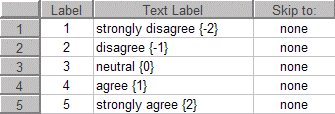
Note that the value can be text or numeric although numeric is recommended. If you use text, make sure the Write as Text option is checked for the item.
Can I change the value used for missing data?
By default, 99 is used as the value for missing data. Because most item types are either open ended or limited to a numeric value of 12, 99 is usually safe. However, if you suspect 99 might be a dangerous value for your particular study you can choose an alternate value. Simply create a text (.txt) file in your experiment folder and name it "missing.txt" and on the first line of that file, enter the alternate value. It must be numeric.
What is the Clear Data button for and can I disable it?
When you make changes to your Experiment File, you often change the structure of your data. This can cause confusion in your data because one subject's data are always appended to the last row in any existing data files. Consequently, it is always a good idea to clear your data folder after making changes to your study. If the existing data are important, then back them up and merge them later with the new data. If they are not important (e.g., they are just test files) then you can click the Clear Data button when entering the subject and condition IDs after selecting a file to run:
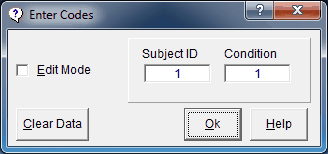
This will delete everything in your data folder resulting in a clean start. Note that some people get very nervous about having this button so accessible. If that's you, there is a way to disable it—on the Preferences menu, simply click Disable Clear Data. Note that MediaLab will attempt to send cleared data to the Windows Recycle Bin if the Experiment File is stored locally (i.e., as opposed to on a network drive).
How do I create a vertical format data file?
Occasionally, you may want to access your MediaLab data in a vertical format--i.e., one variable per row--rather than the usual horizontal format--i.e., all data for each subject located in a single row. Located in the Utilities folder is a file called vertical.mdb. This file is a blank Access database. This file can be copied into the ByVariablename subfolder of any experiment you like. If MediaLab finds this file after a session is complete, it will output all of the data into three columns (subject, varname, value) of the "vertical" table. MediaLab will always append data to whatever data already exist in the file and this function will be in addition to all of the usual data file formats. To maximize compatibility, this file is in Access 97 format--consequently it is readable by versions of Access prior to Access 2007. A simple test of this function would be to copy the vertical.mdb file into the ByVariablename subfolder in your experiment folder and run that sample--you should find the results stored in that file after you run the session. This is also a handy way to programmatically access data immediately after a session for use in other programs.
How to save data from a custom item made with HTML
See Custom Items.
Can I use Long Variable Names?
The limit in MediaLab for variable names is 60 characters. Keep in mind though that some statistical packages and spreadsheet applications may still have difficulty working with longer variable names. Be sure to view and analyze some practice data before going too crazy with this feature!
Inserting variables into question wording and response options
You can insert variables from the data files into the question wording and response options by using <variablename>. For example, if you have variables in your data file called "friend1" and "friend2" you could have response options for any subsequent items in your questionnaire files like this:
1. I would pick <friend1>
2. I would pick <friend2>
This will work to insert prior responses from fill-in-the-blank items, scale responses, multiple responses, and any response.xls variables you have calculated.